TUI Dashboard
The TUI (Terminal User Interface) is the main interactive interface for Agent Harbor. It runs inside your terminal multiplexer and provides a visual dashboard for managing agent tasks.
Launch
ahOr explicitly:
ah tui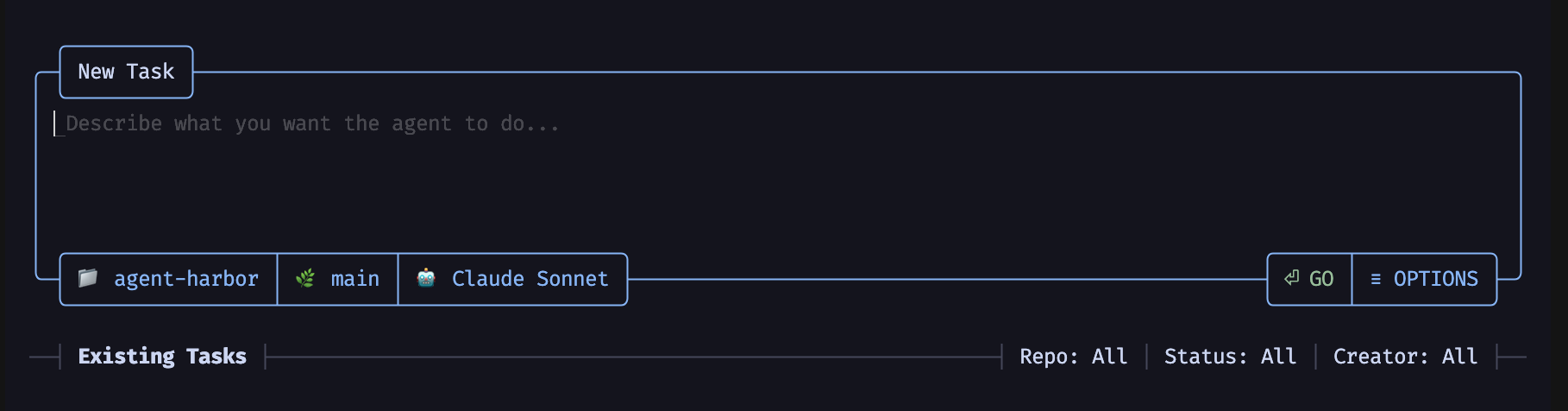
Multiplexer Integration
The TUI integrates with terminal multiplexers to manage agent task windows. When you launch a task, Agent Harbor creates a new multiplexer window with the agent.
Supported Environments
Agent Harbor distinguishes between multiplexers (which manage windows/panes) and terminal emulators (which provide the rendering surface). The --multiplexer flag selects which multiplexer to use for task windows; the terminal emulator is auto-detected.
Multiplexers:
| Multiplexer | Platform | Stability | Notes |
|---|---|---|---|
| tmux | Linux, macOS | Stable | Recommended — most widely used |
| zellij | Linux, macOS | Beta | May contain UI bugs |
| GNU Screen | Linux, macOS | Beta | May contain UI bugs |
tmux is the recommended multiplexer. Zellij and GNU Screen support is functional but may have
UI rendering issues. If you encounter visual glitches, switch to tmux with ah tui --multiplexer tmux.
Terminal emulators (auto-detected):
| Emulator | Platform | Notes |
|---|---|---|
| kitty | Linux, macOS | GPU-accelerated terminal |
| iTerm2 | macOS | Native macOS terminal |
| WezTerm | Linux, macOS | Cross-platform terminal |
| Tilix | Linux | Tiling terminal emulator |
| Ghostty | macOS | GPU-accelerated terminal |
| Windows Terminal | Windows | Native Windows terminal |
Editor terminals (auto-detected):
| Editor | Platform | Notes |
|---|---|---|
| Neovim | Linux, macOS | Terminal mode integration |
| Vim | Linux, macOS | Terminal mode integration |
| Emacs | Linux, macOS | Terminal mode integration |
Specify Multiplexer
# Auto-detect (default)
ah tui

# Use specific multiplexer
ah tui --multiplexer tmux
ah tui --multiplexer zellij
ah tui --multiplexer screen
Dashboard Layout
The dashboard has three main areas:
Header
- Agent Harbor logo (image in supported terminals, ASCII fallback)
- Settings access via gear icon (upper-right)
Task List
Scrollable list of task cards organized by status:
- Draft cards — Where you write new tasks (always at top)
- Active cards — Currently running tasks with live activity
- Completed cards — Finished tasks with summaries
The task list scrolls when cards exceed available space. Use arrow keys, Page Up/Down, or mouse wheel.
Footer
Context-sensitive keyboard shortcuts that change based on current selection and mode.
Task Cards
Draft Cards
Draft cards are where you compose new task prompts:
Components:
- Text area for task description
- Repository selector
- Branch selector
- Agent selector with instance count
- Launch button
Workflow:
- Type your task description
- Press
Tabto move between selectors - Press
Enterto launch
Draft cards expand as you type. Use Shift+Enter for new lines within the text area.
Active Cards
Active cards show running tasks (5 lines):
● Task title • Action buttons
Repository • Branch • Agent • Timestamp • Pause • Delete
[Activity line 1]
[Activity line 2]
[Activity line 3]
Features:
- Live activity feed showing last 3 lines of agent output
- Pause button to suspend the agent
- Delete button to terminate the task
- Navigate to the task window via multiplexer
Completed Cards
Completed cards show finished tasks (2 lines):
✓ Task title
Repository • Branch • Agent • Timestamp • Delivery status • Summary
Summary shows:
- Files changed count
- Lines added/removed (e.g.,
3 files changed (+42 -18)) - Delivery indicators (branch created, PR opened, merged)
Delivery indicators:
⎇Branch exists⇄PR opened✓PR merged
Creating a Task
Step 1: Focus Draft Card
Navigate to a draft card using arrow keys, or create a new one with Ctrl+N.
Step 2: Write Your Prompt
Describe what you want the agent to do. Be specific:
Add comprehensive unit tests for the authentication module.
Cover login, logout, password reset, and session management.
Use Shift+Enter for new lines.
Step 3: Select Repository and Branch
Press Tab to reach the repository selector. Type to filter, use arrows to navigate, Enter to select.
Step 4: Select Agent
Press Tab to reach the agent selector:
- Use arrow keys to navigate agents
- Press
+/-to adjust instance count - Press
Enterto confirm
Step 5: Launch
Press Enter or click “Go” to launch the task.
Agent Selection Modal
The agent selector provides multi-agent configuration:
- Navigate: Arrow keys
- Adjust count:
+/-or←/→ - Filter: Type to search agents
- Confirm:
Enter - Cancel:
Esc
You can select multiple agents to run in parallel, each with configurable instance counts.
Task Windows
When a task launches, a new multiplexer window opens with split panes:
| Pane | Content |
|---|---|
| Left | Terminal in workspace directory |
| Right | Agent activity and output |
Switch between panes using your multiplexer’s pane navigation (e.g., Ctrl+B then arrow in tmux).
Settings
Access settings via the gear icon in the header:
| Setting | Description |
|---|---|
| Theme | Visual appearance |
| Font Style | unicode, nerdfont, ascii |
| Keyboard bindings | CUA, macOS, Emacs |
| Default agent | Pre-selected agent for new tasks |
Navigation Summary
| Action | Keys |
|---|---|
| Move between cards | ↑ ↓ |
| Move between controls | Tab Shift+Tab |
| Create new draft | Ctrl+N |
| Launch task | Enter |
| Dismiss modal | Esc |
| Quit TUI | Ctrl+C (twice) |
Remote Mode
Connect to a remote Agent Harbor server:
ah tui --remote-server https://ah.example.comThe dashboard presents the same interface, but tasks execute on the remote server.